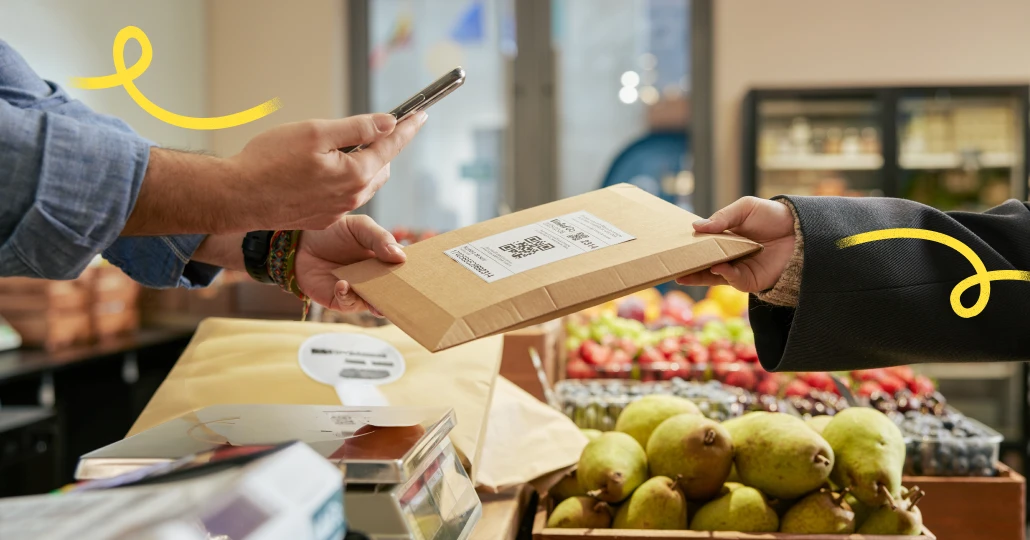
Working with Vinted Go
Get started as a Vinted Go location and keep up with your daily tasks.
The basics
Follow these guidelines to make sure we can track and pay you for every parcel.
Customer visits
- Scan all parcels immediately after taking them from the sender
- Scan all parcels before handing them to recipients. This is how we track and pay you for each parcel.
Driver visits
- Accept delivered bags by scanning the driver's QR code in the app
- Scan all parcels in bags within 24 hours
- Put all parcels waiting for a driver in bags for the next driver who visits
- Hand over all prepared bags, even if they're not full
Your availability
- Stick to the opening hours we’ve agreed to in your contract
- Schedule time off in the app before closing your shop for a day or more
Contents
01
Get set up
02
Driver visits
03
Customer visits
04
App features
05
Contact us
01
Get set up
1a
Download the app


1b
Set up your app
- Check for an email from no-reply@vintedgo.com (sent to the email listed in your contract)
- Follow the password instructions
- Open the Vinted Go Shop app
- Log in with your email and newly created password
1c
Activate to get your first parcels
- Once you’re ready to start receiving parcels from customers and drivers, follow the instructions in the app to activate
- After activation, check your opening hours in the app to make sure they’re correct
1d
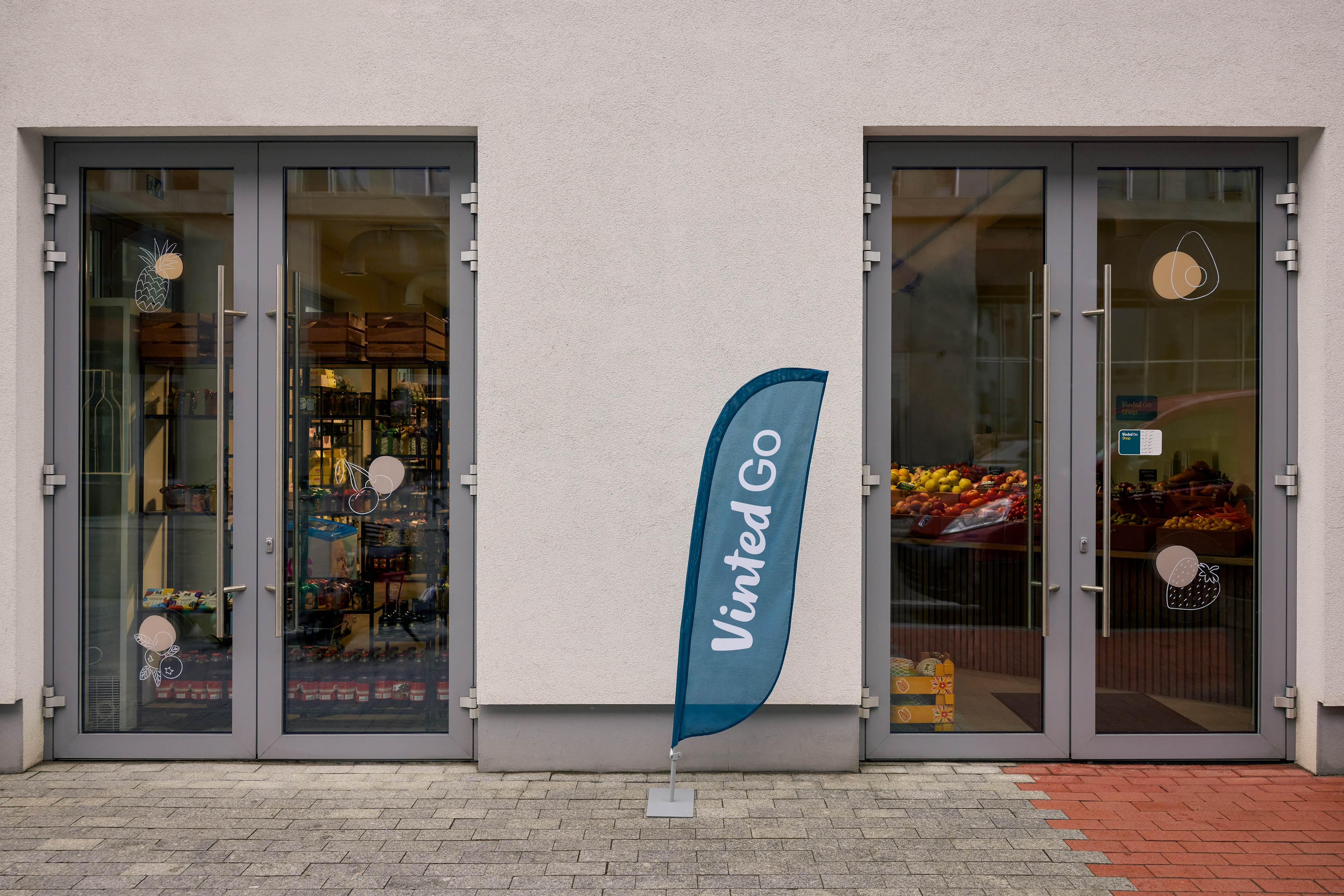
Place the stickers we sent you
Put our logo on your window or door, so customers know they’ve arrived at the right address.
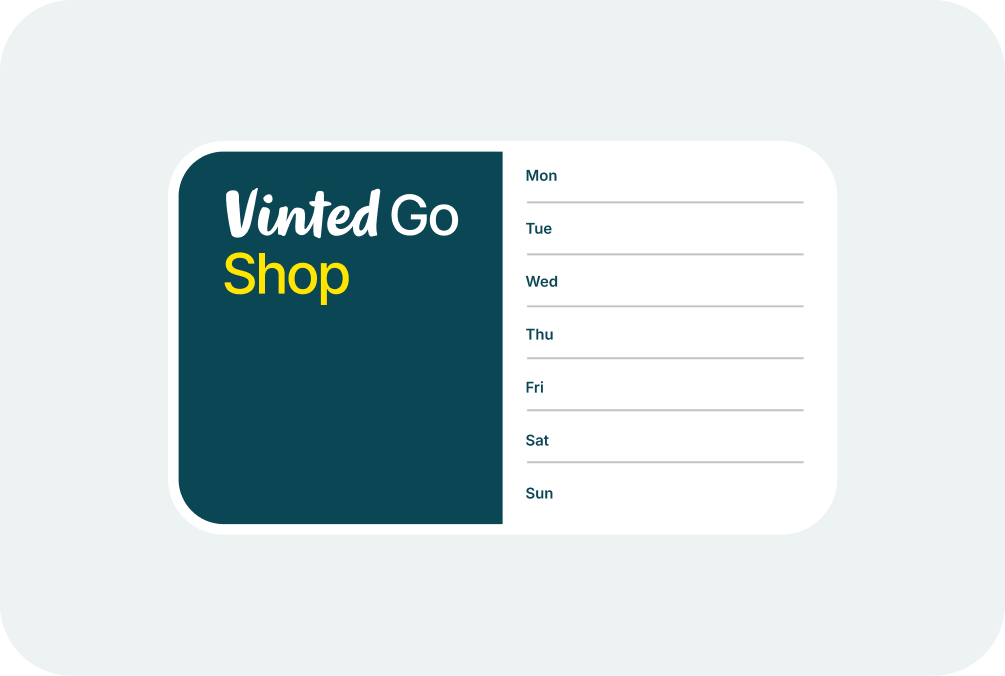
Post your opening hours outside, so customers know when they can send and collect their parcels.
Write your contact information, so customers can reach out if they need help finding you.
Write any additional directions, so customers know where to find you inside the building.
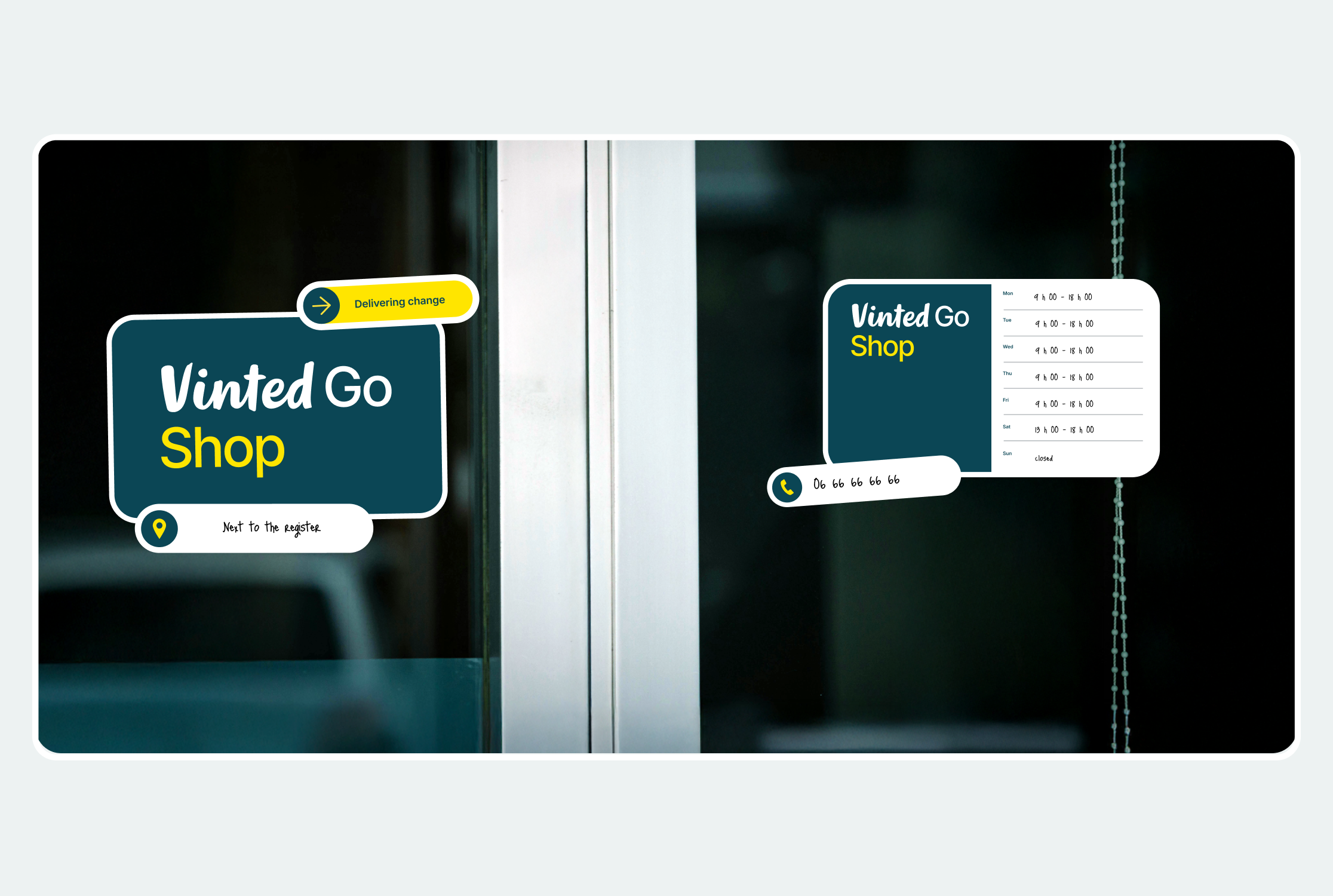
Combine them to suit your space, and help customers find you at the right place and time.
02
Driver visits
Drivers visit your shop to drop off incoming parcels and collect parcels ready for shipment. Frequency is based on parcel volume.
2a
Driver deliveries
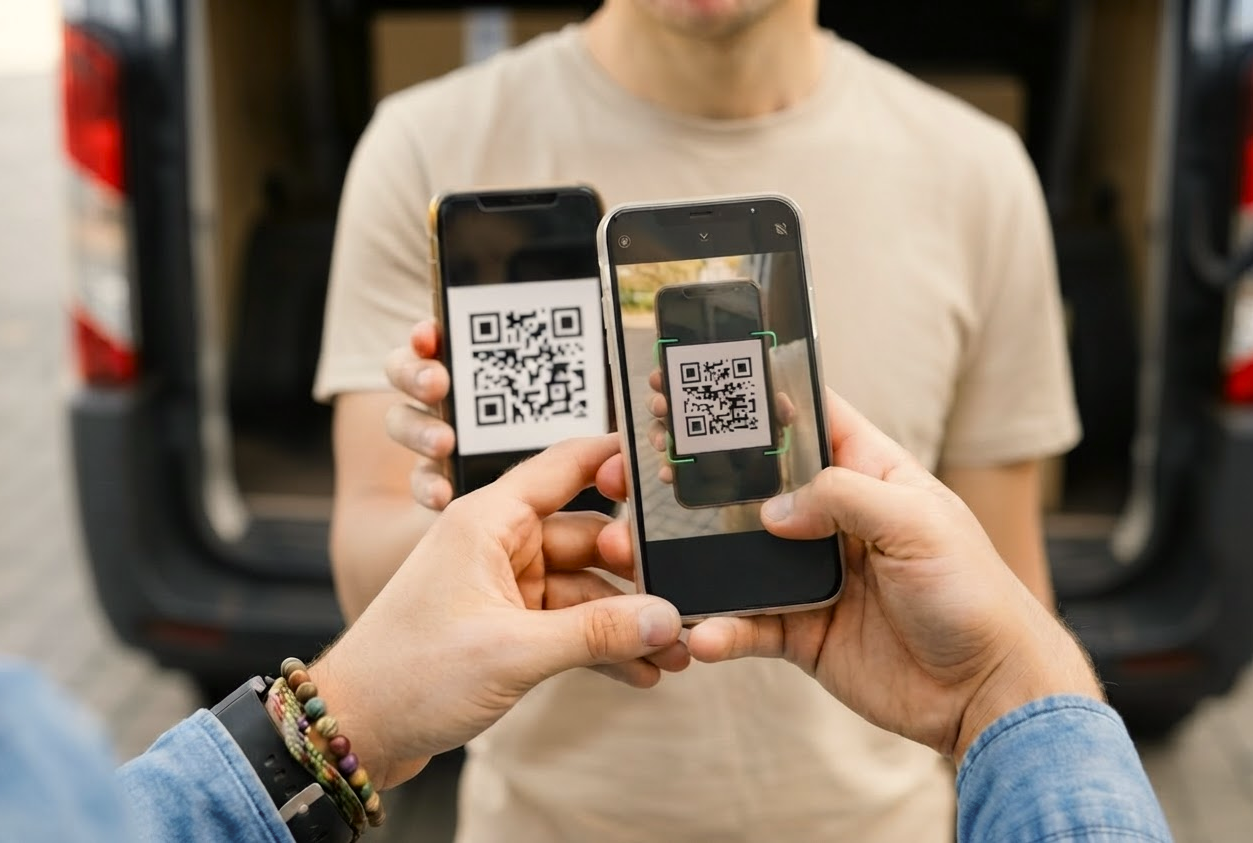
Accept delivered bags
When the driver arrives, tap the notification in your app to scan the driver's QR code, then tap Accept all bags. You no longer need to scan bag barcodes.
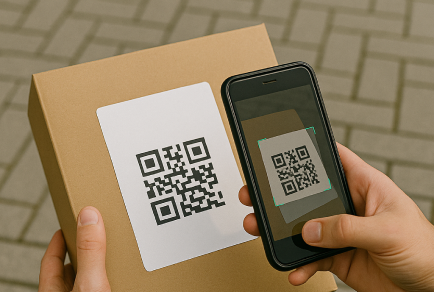
Scan all parcels
Scan each parcel in the app within 24 hours to notify the recipient that it’s ready for pick-up.
Assign it to a zone, or store it securely where staff can easily find it.
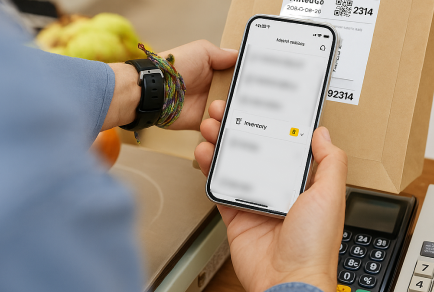
Check your inventory
Check the Inventory section in your app to see if there are any parcels you still need to scan and prepare for the recipient.
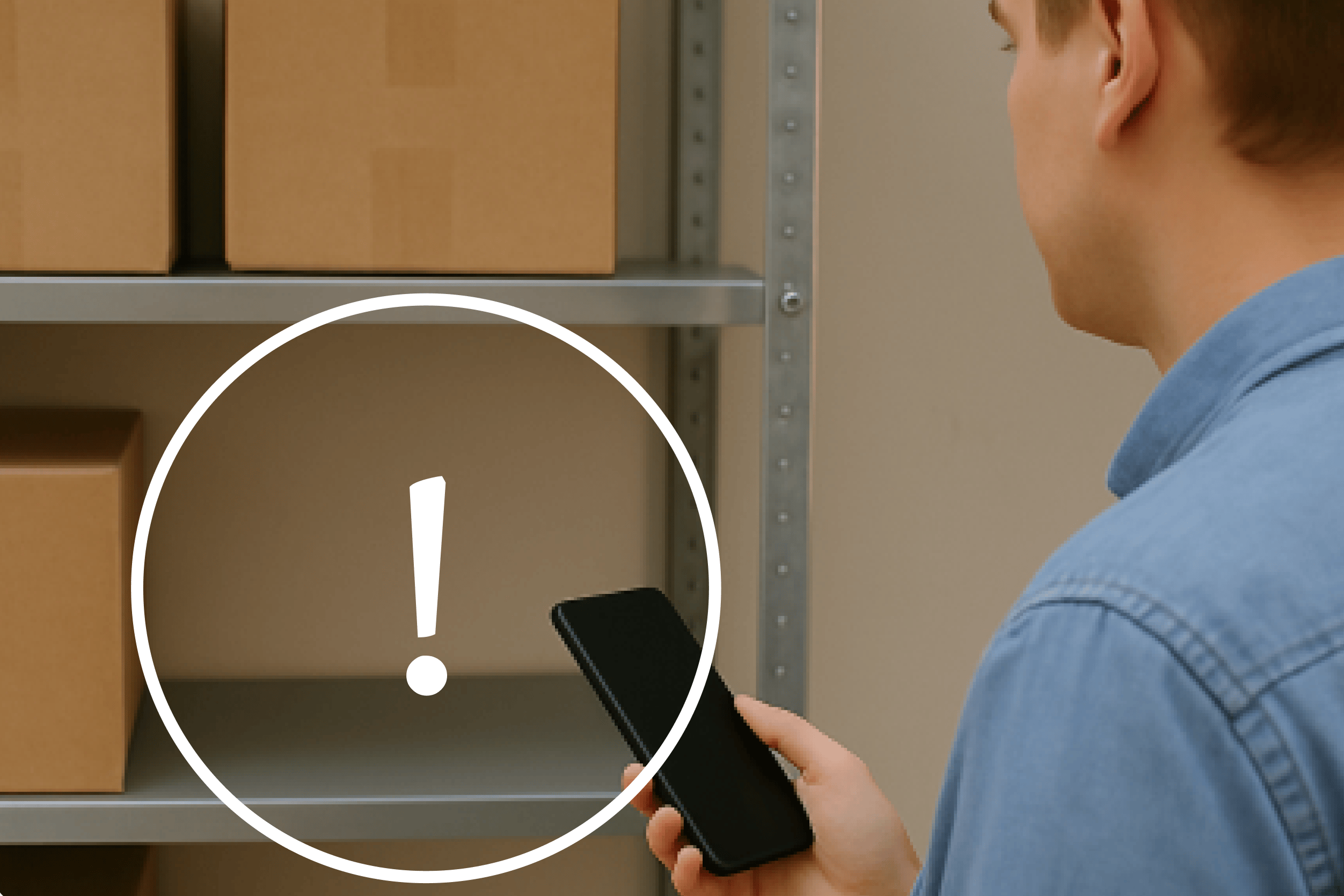
Report anything that’s missing
If a parcel never arrived in the delivered bags, report it right away – in the app, go to: Inventory → To be scanned → select the parcel → Report missing parcel.
Reporting it fast stops the recipient getting notified about a parcel that isn't actually there.
2b
Driver pick-ups
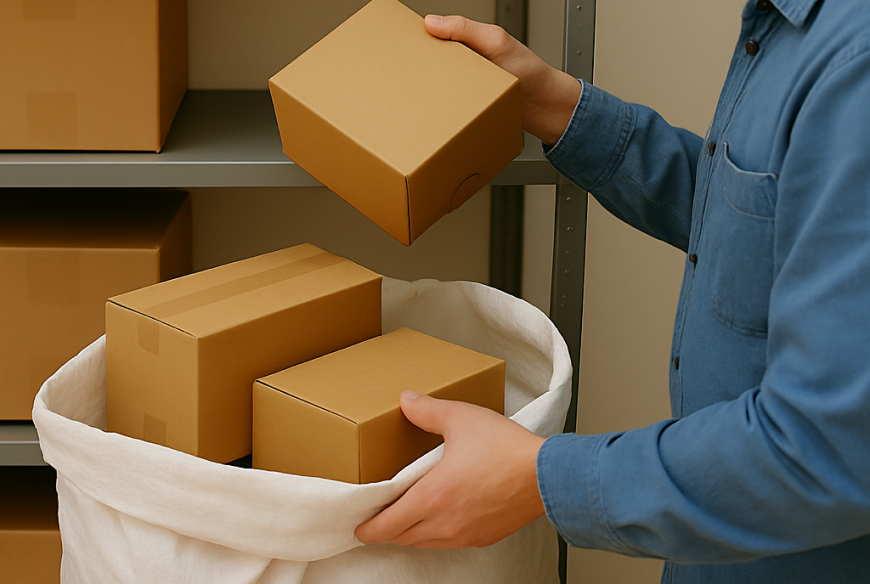
Prepare your bags
Check the inventory in your app for expired parcels (uncollected after 7 days) and customer drop-offs. Put them into bags and seal each bag with a bag tie.
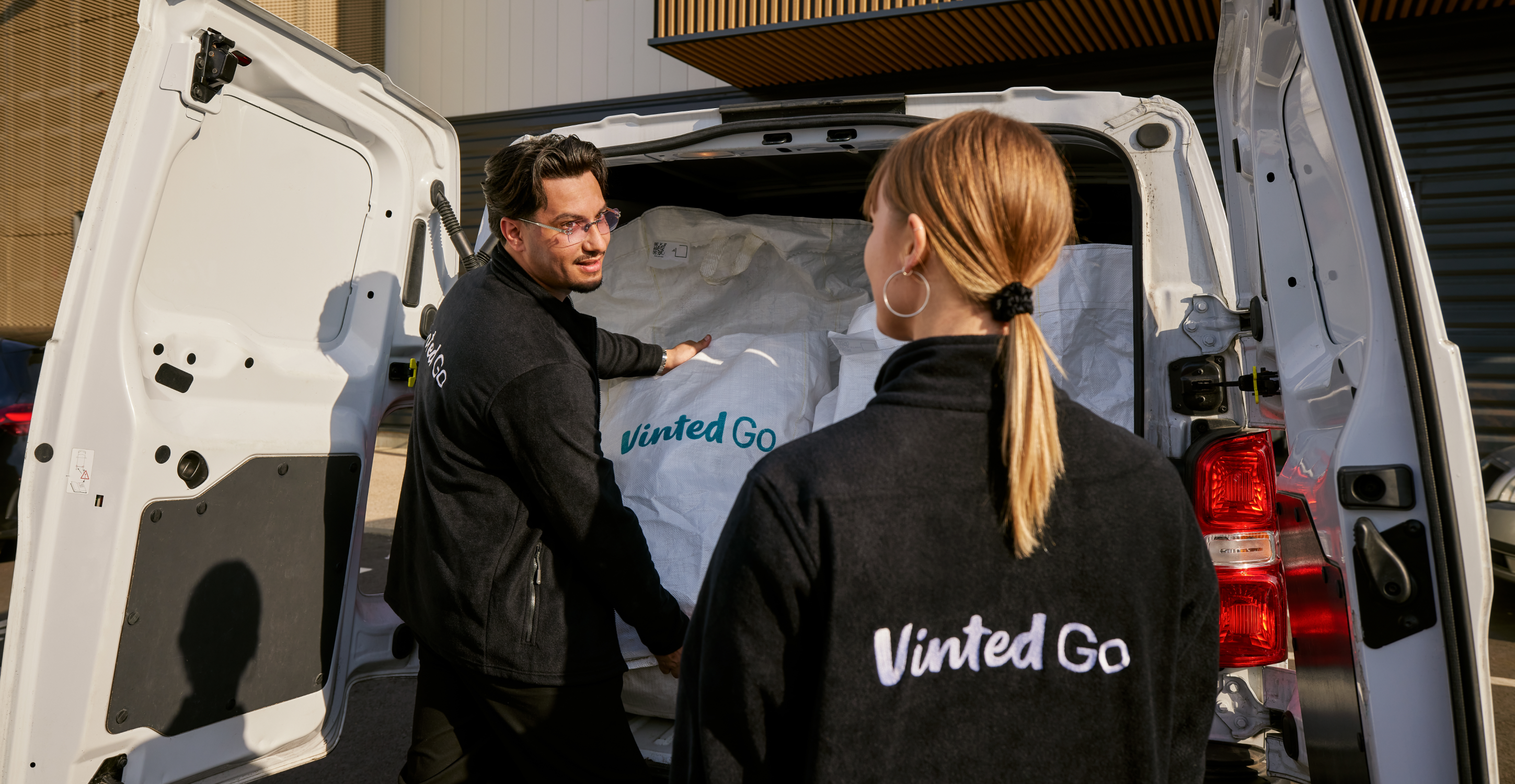
Hand off your bags
Give all prepared bags to every driver who visits – even if a bag is not completely full. The driver scans the bags, and you confirm the totals on your screen to complete the visit.
03
Customer visits
Customers will visit you during your opening hours to send or receive parcels.
3a
Customer drop-offs
Customers sending parcels may bring a shipping label on their phone or attached to their parcel.
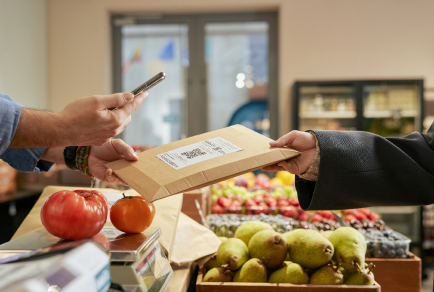
Scan the parcel or digital label
If the customer brings a parcel with a printed label: scan the barcode.
If the customer shows a digital barcode on their phone: scan the screen, attach the printed mini-label to the parcel, and scan the mini-label to link it.
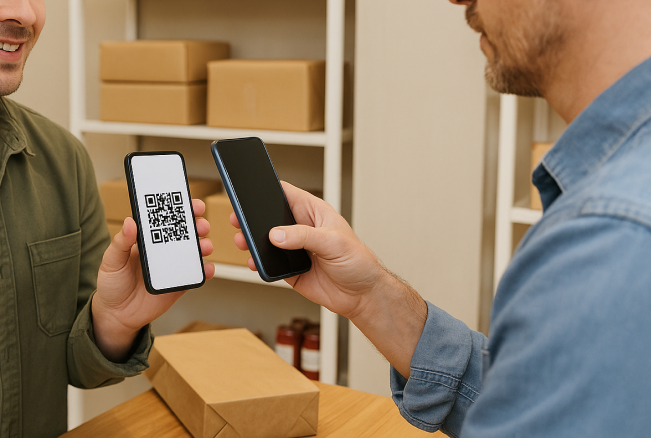
Add to the active bag
The app will confirm the parcel has been accepted and will show your currently open bag. Place the parcel directly inside that bag.
Important: Parcels must be linked to a bag in the app. Parcels left unlinked will not appear in the driver's pickup list!
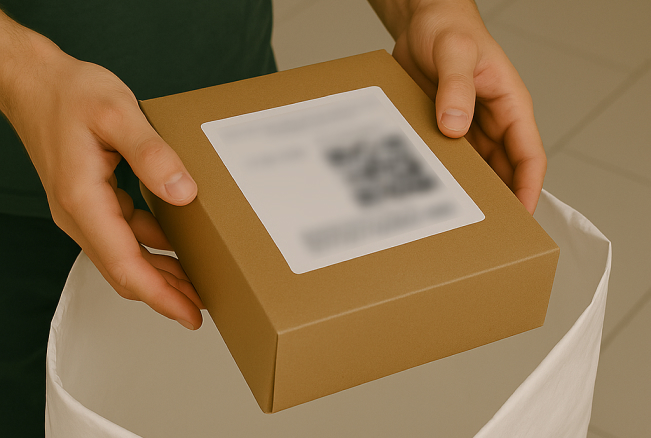
Managing bags in the app
Go to Bag Overview in the app to view open bags or start a new one. Once a bag is full, mark it as Full in the app, seal it with a zip-tie, and place it in your pickup area.
3b
Customer pick-ups
Scanning packages fast notifies customers they're ready for pickup!
Customers collecting parcels may have a pick-up code for you to scan or enter, or they may show their ID.
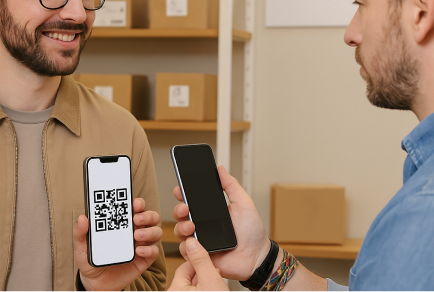
Identify the parcel
Scan the customer’s pick-up code to see the parcel or parcels they’re collecting. If you can’t scan the code, enter the pick-up code or recipient name instead.
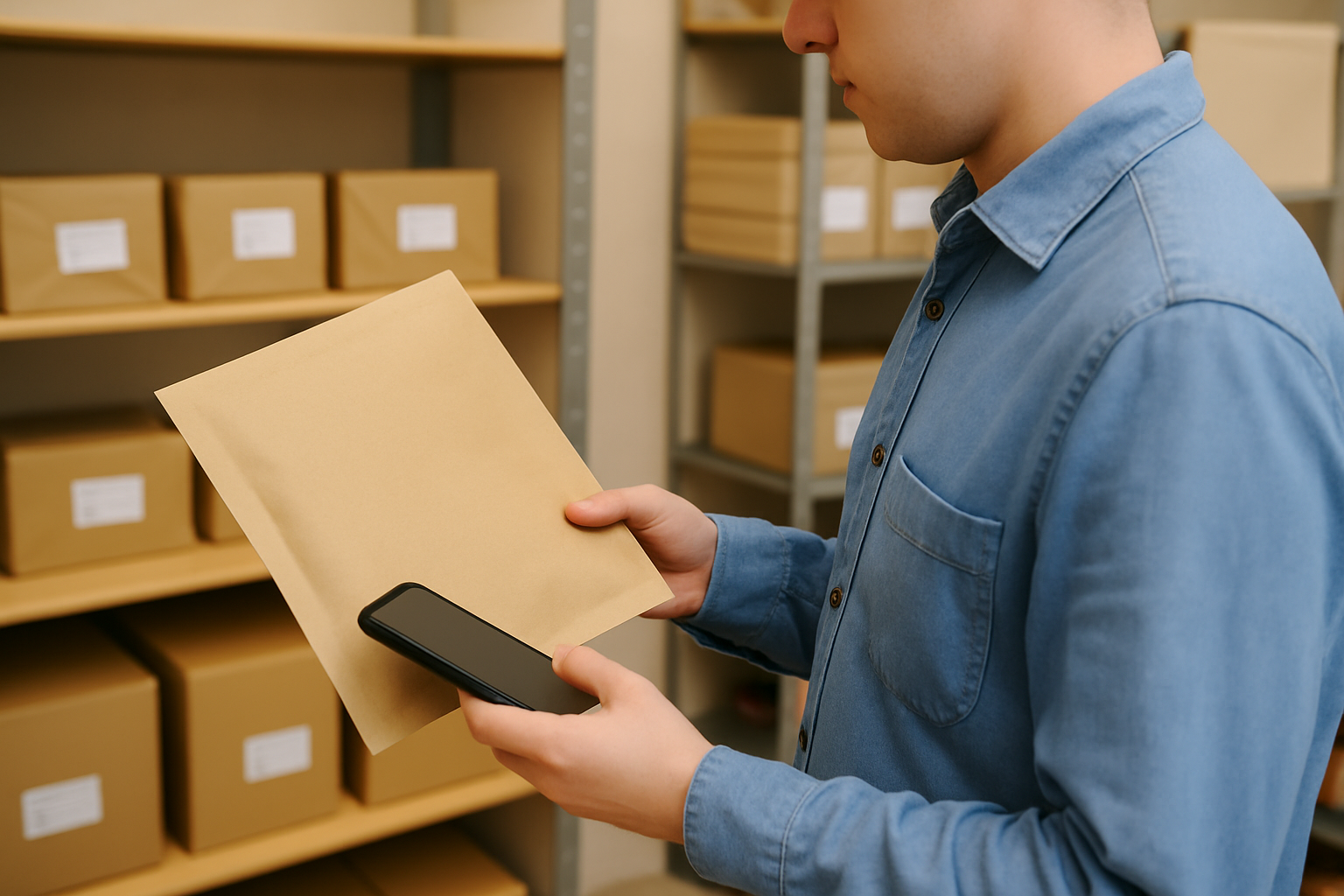
Find the parcel
Our app will list all parcels waiting for the same recipient after a single scan, so you can find them in the same trip.
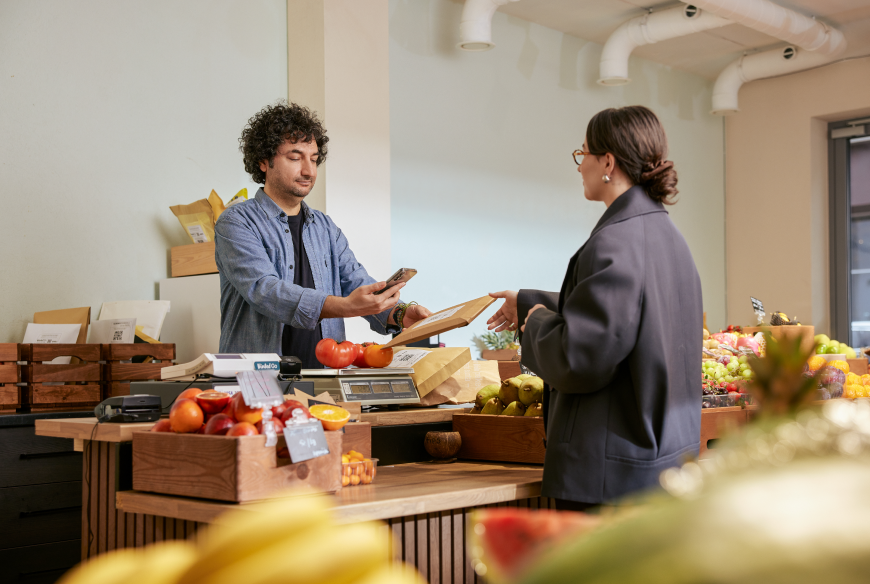
Deliver the parcel
Scan all parcels one at a time before giving them to the customer.
04
App features
Stay in touch about when your shop is open, what supplies you need, and how well it’s performing.
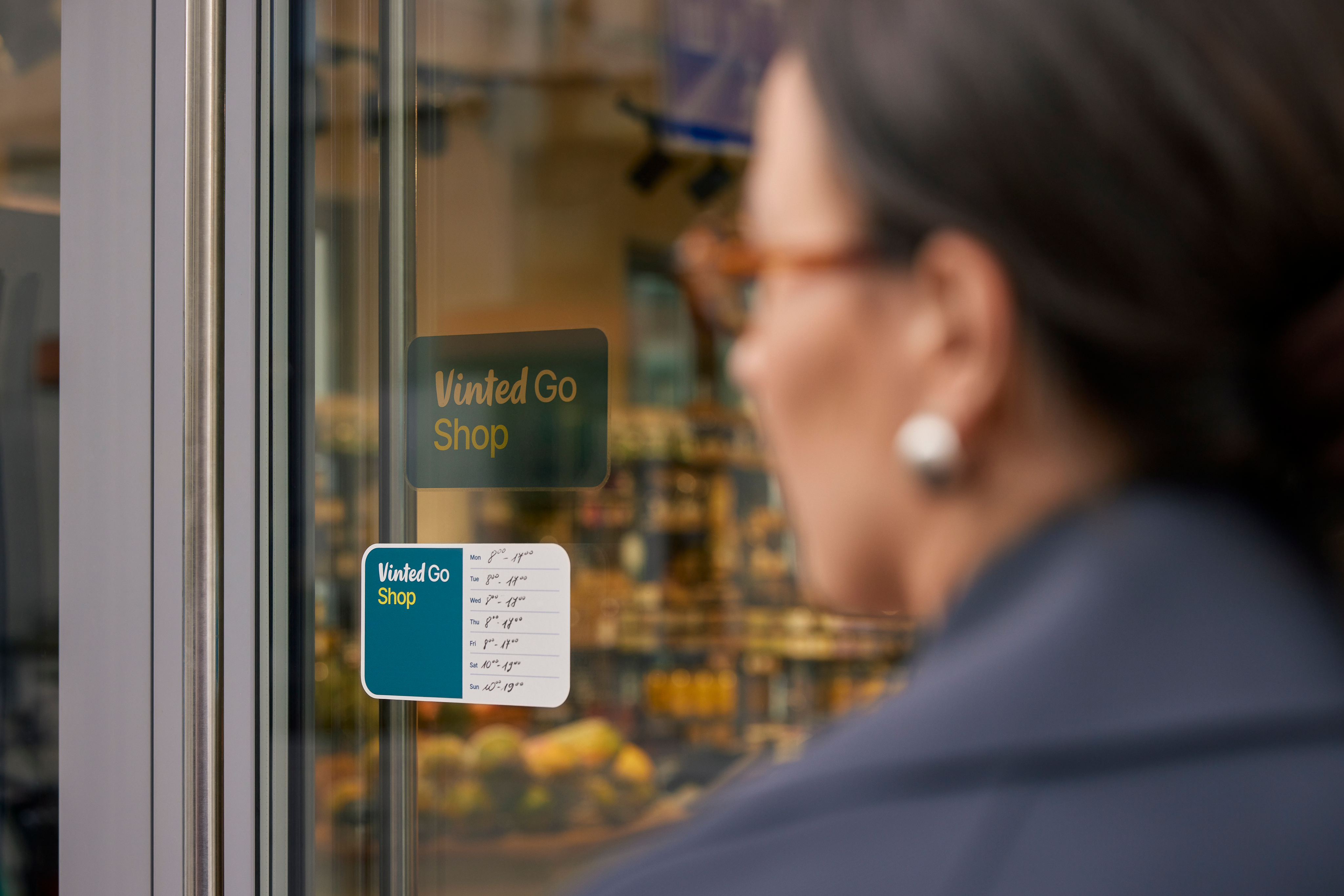
Set opening hours
Keep your regular hours updated so customers and drivers know when they can visit you. Remember to stay open at least 6 hours a day for at least 5 days a week.
Request supplies
Running low on bags, mini-labels, or zip-ties? Request more in the app (My shop → Request supplies) before you run out – delivery takes 2–3 days.
Supplies arrive labeled 'VintedGo Materials for you.' Don't shelve them with customer parcels – open them right away and keep them ready at your counter.
Schedule time off
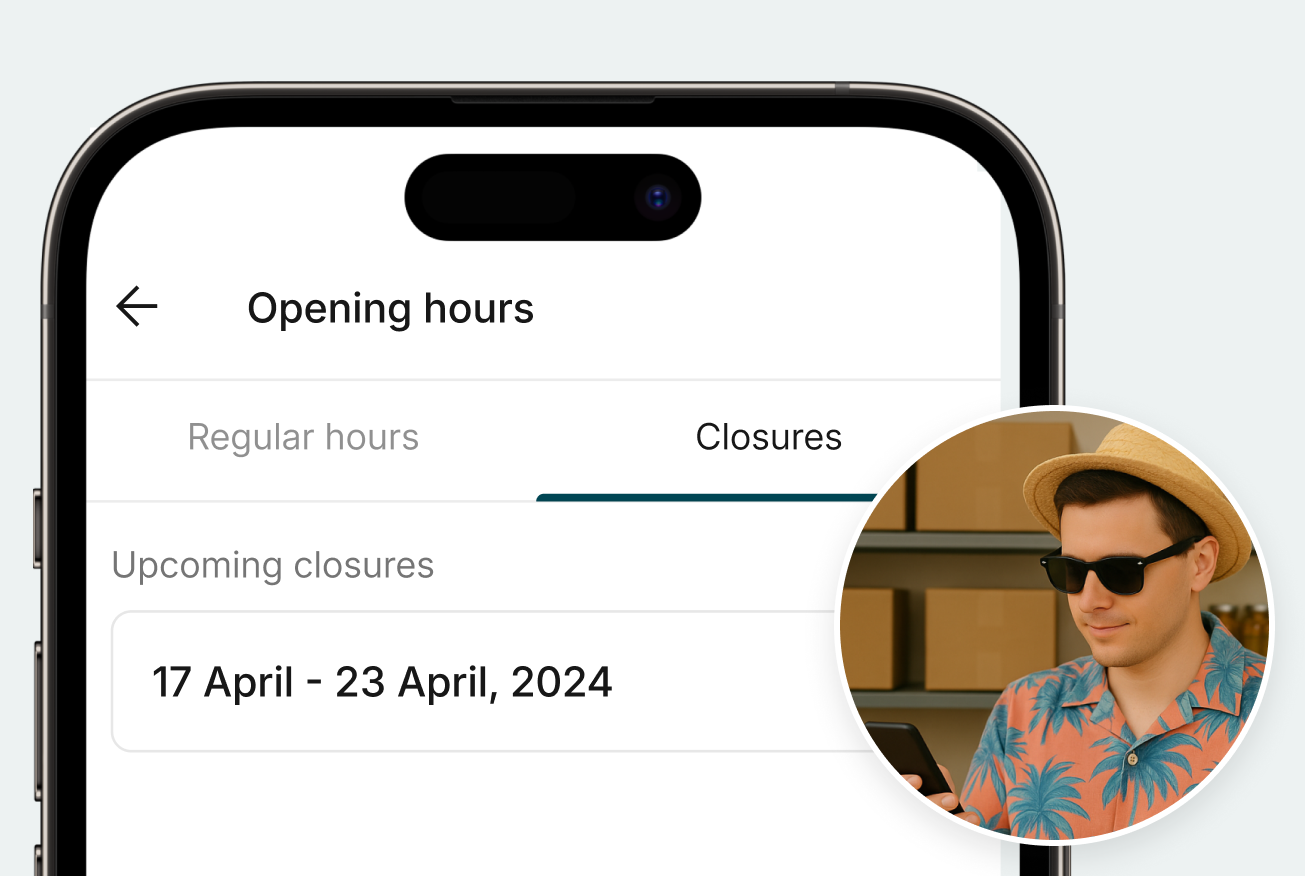
If you’ll be closing your shop for a day or more, schedule your time off in the app to avoid parcels getting stuck there.
Performance and payments
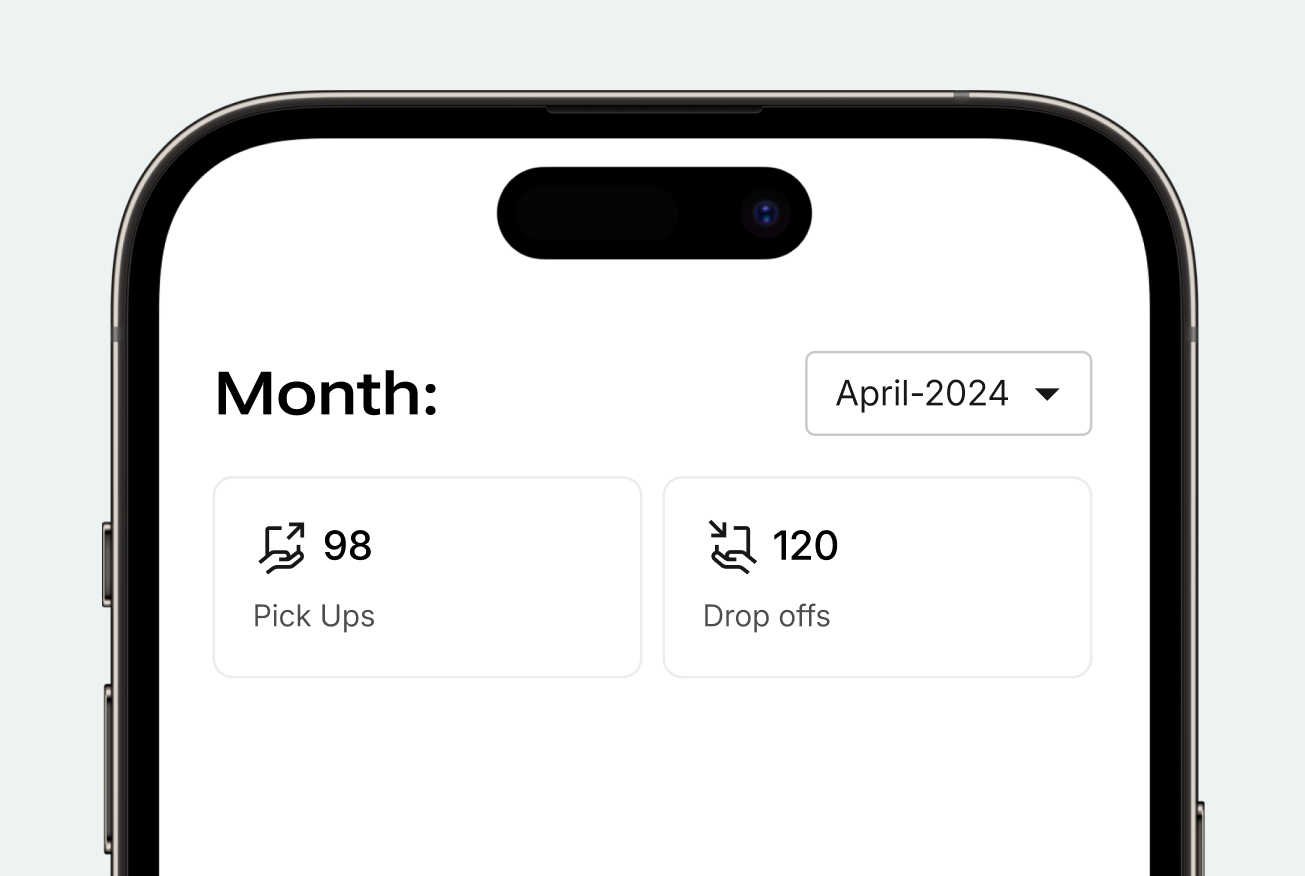
See the parcels scanned at your shop this month and this year. Your parcel totals update once per day.
Monthly payments are automatically transferred to the bank account listed in your contract. Commission fees for operations are also detailed in the contract.
05
Contact us
Shop Support :
To find the most current customer service hours, just head over to your app and look under the shop support section
06
FAQ
Driver Visits & Handshake
How often does the driver come?
Visits are scheduled based on parcel volume rather than a fixed timetable. As your shop's volume grows, visits become more frequent.
How do I confirm delivery and pick-up with the driver?
Every visit ends with a digital Handshake in the app:
- Tap the notification in your app to scan the QR code shown on the driver's device.
- Tap "Accept all bags" to confirm incoming deliveries.
- The driver scans your outgoing bags, and you confirm the total on your screen.
Should I wait until bags are completely full before handing them over?
No. Always hand over all prepared bags to every driver who visits, even if they only contain a few parcels. Holding onto bags delays orders for buyers.
Payments & billing
Do I need to send an invoice to get paid?
No. Vinted Go uses self-billing. We automatically calculate your monthly scanned parcels and send you the invoice by email within the first 10 business days of the following month.
When do I receive my monthly payment?
Payment is transferred automatically via bank transfer (SEPA) to the IBAN listed in your contract, within 30 days of the invoice being issued (usually by the end of the month following the worked period).
How much do I earn per parcel?
You receive a commission for each operation completed (sender drop-offs, recipient pick-ups, and returns). Exact rates are listed in your partnership contract.
Parcel Management
How long do I have to scan parcels the driver delivers?
You must scan each parcel within 24 hours. Scanning notifies the recipient that it's ready for pick-up. If 24 hours pass without scanning, the system sends the notification automatically.
What do I do if a parcel is missing from the delivered bags?
Report it right away in the app: go to Inventory → To be scanned → select the parcel → Report missing parcel. Doing this quickly stops the recipient getting a false notification that their parcel has arrived.
Do I need to attach a mini-label to a parcel that already has a printed label?
No. Mini-labels are only used when a sender shows a digital code on their phone. If the parcel already has a physical label attached, just scan the existing barcode – don't add a mini-label on top.
🔒 FR/NL only — What do I do with partner labels (e.g. Poste Italiane starting with "1UW", GLS)?
Scan the barcode printed directly on the parcel – the app will recognize it automatically. Don't attach a mini-label, and place the parcel straight into the open bag for the driver.
Supplies & Shop Settings
How do I order more bags, mini-labels, or bag ties?
In the app, go to: My shop → Request supplies. Delivery takes 2–3 business days, so order before you run out.
How do I recognize a supplies delivery?
Supplies arrive in bags labeled "VintedGo Materials for you." Don't store them with customer parcels — open them right away and keep them ready at your counter.
How do I update my opening hours or register time off?
In the app, go to: My shop → Opening hours. You can adjust your regular hours or schedule temporary closures under Time off.
How can I change the app's language?
Go to your device's Settings → System → Languages, and move your preferred language to the top of the list. The Vinted Go Shop app will automatically display in that language.
Do I need Wi-Fi in my shop?
Yes. Your device must be connected to your shop's Wi-Fi network (or have a stable internet connection) to scan parcels, update your inventory, and complete driver visits in real time.
Working with Vinted Go
Get started as a Vinted Go location and keep up with your daily tasks.
The basics
Follow these guidelines to make sure we can track and pay you for every parcel.
Customer visits
- Scan all parcels immediately after taking them from the sender
- Scan all parcels before handing them to recipients. This is how we track and pay you for each parcel.
Driver visits
- Accept delivered bags by scanning the driver's QR code in the app
- Scan all parcels in bags within 24 hours
- Put all parcels waiting for a driver in bags for the next driver who visits
- Hand over all prepared bags, even if they're not full
Your availability
- Stick to the opening hours we’ve agreed to in your contract
- Schedule time off in the app before closing your shop for a day or more
Contents
01
Get set up
02
Driver visits
03
Customer visits
04
App features
05
Contact us
01
Get set up
1a
Download the app
1b
Set up your app
- Check for an email from no-reply@vintedgo.com (sent to the email listed in your contract)
- Follow the password instructions
- Open the Vinted Go Shop app
- Log in with your email and newly created password
1c
Activate to get your first parcels
- Once you’re ready to start receiving parcels from customers and drivers, follow the instructions in the app to activate
- After activation, check your opening hours in the app to make sure they’re correct
1d
Place the stickers we sent you
Put our logo on your window or door, so customers know they’ve arrived at the right address.
Post your opening hours outside, so customers know when they can send and collect their parcels.
Write your contact information, so customers can reach out if they need help finding you.
Write any additional directions, so customers know where to find you inside the building.
Combine them to suit your space, and help customers find you at the right place and time.
02
Driver visits
Drivers visit your shop to drop off incoming parcels and collect parcels ready for shipment. Frequency is based on parcel volume.
2a
Driver deliveries
Accept delivered bags
When the driver arrives, tap the notification in your app to scan the driver's QR code, then tap Accept all bags. You no longer need to scan bag barcodes.
Scan all parcels
Scan each parcel in the app within 24 hours to notify the recipient that it’s ready for pick-up.
Assign it to a zone, or store it securely where staff can easily find it.
Check your inventory
Check the Inventory section in your app to see if there are any parcels you still need to scan and prepare for the recipient.
Report anything that’s missing
If a parcel never arrived in the delivered bags, report it right away – in the app, go to: Inventory → To be scanned → select the parcel → Report missing parcel.
Reporting it fast stops the recipient getting notified about a parcel that isn't actually there.
2b
Driver pick-ups
Prepare your bags
Check the inventory in your app for expired parcels (uncollected after 7 days) and customer drop-offs. Put them into bags and seal each bag with a bag tie.
Hand off your bags
Give all prepared bags to every driver who visits – even if a bag is not completely full. The driver scans the bags, and you confirm the totals on your screen to complete the visit.
03
Customer visits
Customers will visit you during your opening hours to send or receive parcels.
3a
Customer drop-offs
Customers sending parcels may bring a shipping label on their phone or attached to their parcel.
Scan the parcel or digital label
If the customer brings a parcel with a printed label: scan the barcode.
If the customer shows a digital barcode on their phone: scan the screen, attach the printed mini-label to the parcel, and scan the mini-label to link it.
Add to the active bag
The app will confirm the parcel has been accepted and will show your currently open bag. Place the parcel directly inside that bag.
Important: Parcels must be linked to a bag in the app. Parcels left unlinked will not appear in the driver's pickup list!
Managing bags in the app
Go to Bag Overview in the app to view open bags or start a new one. Once a bag is full, mark it as Full in the app, seal it with a zip-tie, and place it in your pickup area.
3b
Customer pick-ups
Scanning packages fast notifies customers they're ready for pickup!
Customers collecting parcels may have a pick-up code for you to scan or enter, or they may show their ID.
Identify the parcel
Scan the customer’s pick-up code to see the parcel or parcels they’re collecting. If you can’t scan the code, enter the pick-up code or recipient name instead.
Find the parcel
Our app will list all parcels waiting for the same recipient after a single scan, so you can find them in the same trip.
Deliver the parcel
Scan all parcels one at a time before giving them to the customer.
04
App features
Stay in touch about when your shop is open, what supplies you need, and how well it’s performing.
Set opening hours
Keep your regular hours updated so customers and drivers know when they can visit you. Remember to stay open at least 6 hours a day for at least 5 days a week.
Request supplies
Running low on bags, mini-labels, or zip-ties? Request more in the app (My shop → Request supplies) before you run out – delivery takes 2–3 days.
Supplies arrive labeled 'VintedGo Materials for you.' Don't shelve them with customer parcels – open them right away and keep them ready at your counter.
Schedule time off
If you’ll be closing your shop for a day or more, schedule your time off in the app to avoid parcels getting stuck there.
Performance and payments
See the parcels scanned at your shop this month and this year. Your parcel totals update once per day.
Monthly payments are automatically transferred to the bank account listed in your contract. Commission fees for operations are also detailed in the contract.
05
Contact us
Shop Support :
To find the most current customer service hours, just head over to your app and look under the shop support section
06
FAQ
Driver Visits & Handshake
How often does the driver come?
Visits are scheduled based on parcel volume rather than a fixed timetable. As your shop's volume grows, visits become more frequent.
How do I confirm delivery and pick-up with the driver?
Every visit ends with a digital Handshake in the app:
- Tap the notification in your app to scan the QR code shown on the driver's device.
- Tap "Accept all bags" to confirm incoming deliveries.
- The driver scans your outgoing bags, and you confirm the total on your screen.
Should I wait until bags are completely full before handing them over?
No. Always hand over all prepared bags to every driver who visits, even if they only contain a few parcels. Holding onto bags delays orders for buyers.
Payments & billing
Do I need to send an invoice to get paid?
No. Vinted Go uses self-billing. We automatically calculate your monthly scanned parcels and send you the invoice by email within the first 10 business days of the following month.
When do I receive my monthly payment?
Payment is transferred automatically via bank transfer (SEPA) to the IBAN listed in your contract, within 30 days of the invoice being issued (usually by the end of the month following the worked period).
How much do I earn per parcel?
You receive a commission for each operation completed (sender drop-offs, recipient pick-ups, and returns). Exact rates are listed in your partnership contract.
Parcel Management
How long do I have to scan parcels the driver delivers?
You must scan each parcel within 24 hours. Scanning notifies the recipient that it's ready for pick-up. If 24 hours pass without scanning, the system sends the notification automatically.
What do I do if a parcel is missing from the delivered bags?
Report it right away in the app: go to Inventory → To be scanned → select the parcel → Report missing parcel. Doing this quickly stops the recipient getting a false notification that their parcel has arrived.
Do I need to attach a mini-label to a parcel that already has a printed label?
No. Mini-labels are only used when a sender shows a digital code on their phone. If the parcel already has a physical label attached, just scan the existing barcode – don't add a mini-label on top.
FR/NL only — What do I do with partner labels (e.g. Poste Italiane starting with "1UW", GLS)?
Scan the barcode printed directly on the parcel – the app will recognize it automatically. Don't attach a mini-label, and place the parcel straight into the open bag for the driver.
Supplies & Shop Settings
How do I order more bags, mini-labels, or bag ties?
In the app, go to: My shop → Request supplies. Delivery takes 2–3 business days, so order before you run out.
How do I recognize a supplies delivery?
Supplies arrive in bags labeled "VintedGo Materials for you." Don't store them with customer parcels — open them right away and keep them ready at your counter.
How do I update my opening hours or register time off?
In the app, go to: My shop → Opening hours. You can adjust your regular hours or schedule temporary closures under Time off.
How can I change the app's language?
Go to your device's Settings → System → Languages, and move your preferred language to the top of the list. The Vinted Go Shop app will automatically display in that language.
Do I need Wi-Fi in my shop?
Yes. Your device must be connected to your shop's Wi-Fi network (or have a stable internet connection) to scan parcels, update your inventory, and complete driver visits in real time.
Working with Vinted Go
Get started as a Vinted Go location and keep up with your daily tasks.
The basics
Follow these guidelines to make sure we can track and pay you for every parcel.
Customer visits
- Scan all parcels immediately after taking them from the sender
- Scan all parcels before handing them to recipients
Driver visits
- Accept delivered bags by scanning the driver's QR code in the app
- Scan all parcels in bags within 24 hours
- Put all parcels waiting for a driver in bags for the next driver who visits
- Hand over all prepared bags, even if they're not full
Your availability
- Stick to the opening hours we’ve agreed to in your contract
- Schedule time off in the app before closing your shop for a day or more
Contents
01
Get set up
02
Driver visits
03
Customer visits
04
App features
05
Contact us
01
Get set up
1a
Download the app
1b
Set up your app
- Check for an email from no-reply@vintedgo.com (sent to the email listed in your contract)
- Follow the password instructions
- Open the Vinted Go Shop app
- Log in with your email and newly created password
1c
Activate to get your first parcels
- Once you’re ready to start receiving parcels from customers and drivers, follow the instructions in the app to activate
- After activation, check your opening hours in the app to make sure they’re correct
1d
Place the stickers we sent you
Put our logo on your window or door, so customers know they’ve arrived at the right address.
Post your opening hours outside, so customers know when they can send and collect their parcels.
Write your contact information, so customers can reach out if they need help finding you.
Write any additional directions, so customers know where to find you inside the building.
Combine them to suit your space, and help customers find you at the right place and time.
02
Driver visits
Drivers visit your shop to drop off incoming parcels and collect parcels ready for shipment. Frequency is based on parcel volume.
2a
Driver deliveries
Accept delivered bags
When the driver arrives, tap the notification in your app to scan the driver's QR code, then tap Accept all bags. You no longer need to scan bag barcodes.
Scan all parcels
Scan each parcel in the app within 24 hours to notify the recipient that it’s ready for pick-up.
Assign it to a zone, or store it securely where staff can easily find it.
Check your inventory
Check the Inventory section in your app to see if there are any parcels you still need to scan and prepare for the recipient.
Report anything that’s missing
If a parcel never arrived in the delivered bags, report it right away – in the app, go to: Inventory → To be scanned → select the parcel → Report missing parcel.
Reporting it fast stops the recipient getting notified about a parcel that isn't actually there.
2b
Driver pick-ups
Prepare your bags
Check the inventory in your app for expired parcels (uncollected after 7 days) and customer drop-offs. Put them into bags and seal each bag with a bag tie.
Hand off your bags
Give all prepared bags to every driver who visits – even if a bag is not completely full. The driver scans the bags, and you confirm the totals on your screen to complete the visit.
03
Customer visits
Customers will visit you during your opening hours to send or receive parcels.
3a
Customer drop-offs
Customers sending parcels may bring a shipping label on their phone or attached to their parcel.
Scan the parcel or digital label
If the customer brings a parcel with a printed label: scan the barcode.
If the customer shows a digital barcode on their phone: scan the screen, attach the printed mini-label to the parcel, and scan the mini-label to link it.
Add to the active bag
The app will confirm the parcel has been accepted and will show your currently open bag. Place the parcel directly inside that bag.
Important: Parcels must be linked to a bag in the app. Parcels left unlinked will not appear in the driver's pickup list!
Managing bags in the app
Go to Bag Overview in the app to view open bags or start a new one. Once a bag is full, mark it as Full in the app, seal it with a zip-tie, and place it in your pickup area.
3b
Customer pick-ups
Scanning packages fast notifies customers they're ready for pickup!
Customers collecting parcels may have a pick-up code for you to scan or enter, or they may show their ID.
Identify the parcel
Scan the customer’s pick-up code to see the parcel or parcels they’re collecting. If you can’t scan the code, enter the pick-up code or recipient name instead.
Find the parcel
Our app will list all parcels waiting for the same recipient after a single scan, so you can find them in the same trip.
Deliver the parcel
Scan all parcels one at a time before giving them to the customer.
04
App features
Stay in touch about when your shop is open, what supplies you need, and how well it’s performing.
Set opening hours
Keep your regular hours updated so customers and drivers know when they can visit you. Remember to stay open at least 6 hours a day for at least 5 days a week.
Request supplies
Running low on bags, mini-labels, or zip-ties? Request more in the app (My shop → Request supplies) before you run out – delivery takes 2–3 days.
Supplies arrive labeled 'VintedGo Materials for you.' Don't shelve them with customer parcels – open them right away and keep them ready at your counter.
Schedule time off
If you’ll be closing your shop for a day or more, schedule your time off in the app to avoid parcels getting stuck there.
Performance and payments
See the parcels scanned at your shop this month and this year. Your parcel totals update once per day.
Monthly payments are automatically transferred to the bank account listed in your contract. Commission fees for operations are also detailed in the contract.
05
Contact us
Shop Support :
To find the most current customer service hours, just head over to your app and look under the shop support section
06
FAQ
Driver Visits & Handshake
How often does the driver come?
Visits are scheduled based on parcel volume rather than a fixed timetable. As your shop's volume grows, visits become more frequent.
How do I confirm delivery and pick-up with the driver?
Every visit ends with a digital Handshake in the app:
- Tap the notification in your app to scan the QR code shown on the driver's device.
- Tap "Accept all bags" to confirm incoming deliveries.
- The driver scans your outgoing bags, and you confirm the total on your screen.
Should I wait until bags are completely full before handing them over?
No. Always hand over all prepared bags to every driver who visits, even if they only contain a few parcels. Holding onto bags delays orders for buyers.
Payments & billing
Do I need to send an invoice to get paid?
No. Vinted Go uses self-billing. We automatically calculate your monthly scanned parcels and send you the invoice by email within the first 10 business days of the following month.
When do I receive my monthly payment?
Payment is transferred automatically via bank transfer (SEPA) to the IBAN listed in your contract, within 30 days of the invoice being issued (usually by the end of the month following the worked period).
How much do I earn per parcel?
You receive a commission for each operation completed (sender drop-offs, recipient pick-ups, and returns). Exact rates are listed in your partnership contract.
Parcel Management
How long do I have to scan parcels the driver delivers?
You must scan each parcel within 24 hours. Scanning notifies the recipient that it's ready for pick-up. If 24 hours pass without scanning, the system sends the notification automatically.
What do I do if a parcel is missing from the delivered bags?
Report it right away in the app: go to Inventory → To be scanned → select the parcel → Report missing parcel. Doing this quickly stops the recipient getting a false notification that their parcel has arrived.
Do I need to attach a mini-label to a parcel that already has a printed label?
No. Mini-labels are only used when a sender shows a digital code on their phone. If the parcel already has a physical label attached, just scan the existing barcode – don't add a mini-label on top.
FR/NL only — What do I do with partner labels (e.g. Poste Italiane starting with "1UW", GLS)?
Scan the barcode printed directly on the parcel – the app will recognize it automatically. Don't attach a mini-label, and place the parcel straight into the open bag for the driver.
Supplies & Shop Settings
How do I order more bags, mini-labels, or bag ties?
In the app, go to: My shop → Request supplies. Delivery takes 2–3 business days, so order before you run out.
How do I recognize a supplies delivery?
Supplies arrive in bags labeled "VintedGo Materials for you." Don't store them with customer parcels — open them right away and keep them ready at your counter.
How do I update my opening hours or register time off?
In the app, go to: My shop → Opening hours. You can adjust your regular hours or schedule temporary closures under Time off.
How can I change the app's language?
Go to your device's Settings → System → Languages, and move your preferred language to the top of the list. The Vinted Go Shop app will automatically display in that language.
Do I need Wi-Fi in my shop?
Yes. Your device must be connected to your shop's Wi-Fi network (or have a stable internet connection) to scan parcels, update your inventory, and complete driver visits in real time.